(Guides · Navigation)
Mega menu and search
Vale's mega menu shows pictures beside the links. Most of them fill themselves from your collections, so a new collection in the menu arrives with its image and product count.
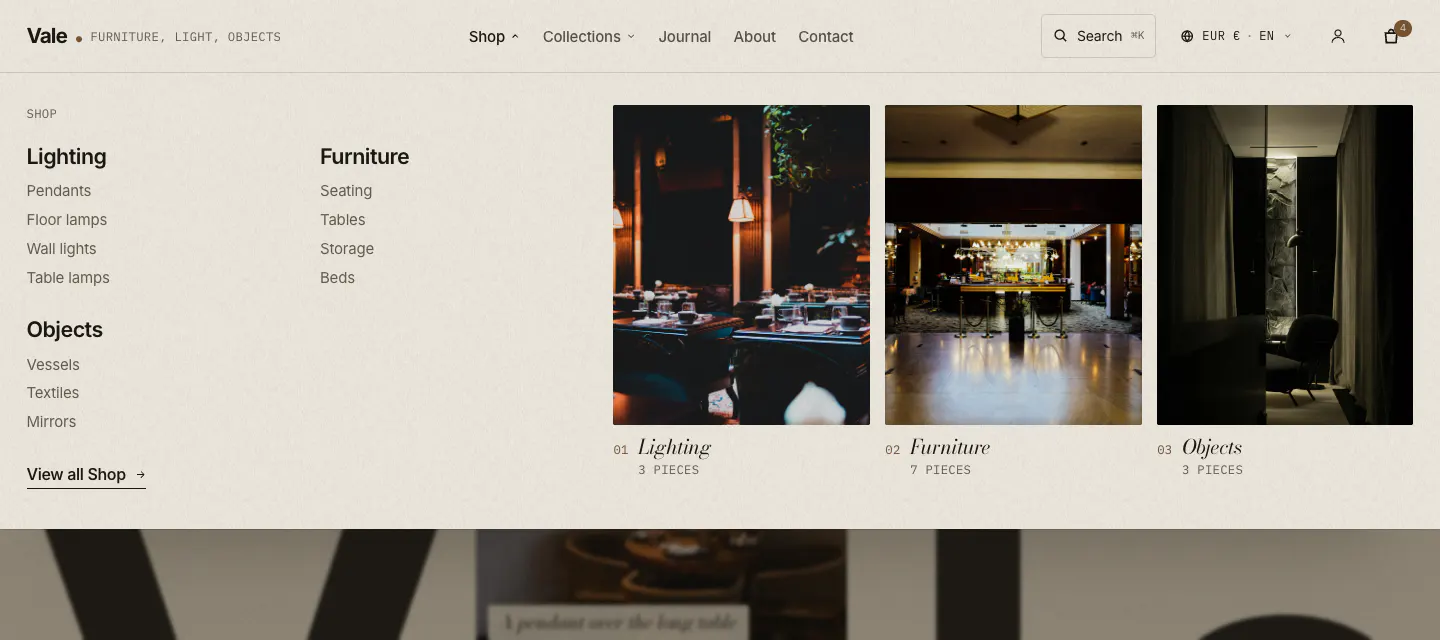
- 01Logo
- 02Main menu
- 03Mega menu links
- 04Collection picture tiles
- 05Search
- 06Country and language
- 07Account
- 08Cart
Set up a mega menu
- Build the menu. In your
main-menu, give a top-level item (for example Shop) a submenu of links to collections. Nested links become columns. - Add a Mega menu block. In the theme editor, select the Header, then Add block > Mega menu. Vale already includes two, for Shop and Collections.
- Type the menu item's name. Menu item must match the top-level item's title exactly, including capitals and spaces.
- Choose the pictures. Keep Auto-fill tiles from the submenu's collections on and set Pictures shown (up to three).
How tiles are chosen
- Auto tiles
- Every submenu link that points to a collection with an image becomes a tile: the collection's image, the link's title and the collection's product count
- Hand-picked tiles
- Up to three per block: Image, Collection, Link, Caption and Small label. A tile shows when it has an image or a collection; missing parts come from the collection
- Order
- Auto tiles first, then hand-picked tiles, up to Pictures shown. A collection already shown is not repeated
- Mobile
- In the mobile menu the same tiles appear as a picture row under the links
Check that the submenu links point to collections (not to a search or a page), that those collections have a collection image, and that the block's Menu item matches the menu exactly.
Other submenus
The Header's Other submenus setting decides how items without a Mega menu block open: as a Full-width panel (links only) or a Small dropdown. Items with a block always open the full panel.
Menus open on hover and on click, close with Escape, and are fully usable with the keyboard. A soft ink dim sits behind the open menu.
Search overlay
The search drops from the top and is keyboard first: open it with the search icon, ⌘ K (Ctrl K on Windows) or /. Results appear as you type: products with image and price, suggestions, collections, pages and journal articles.
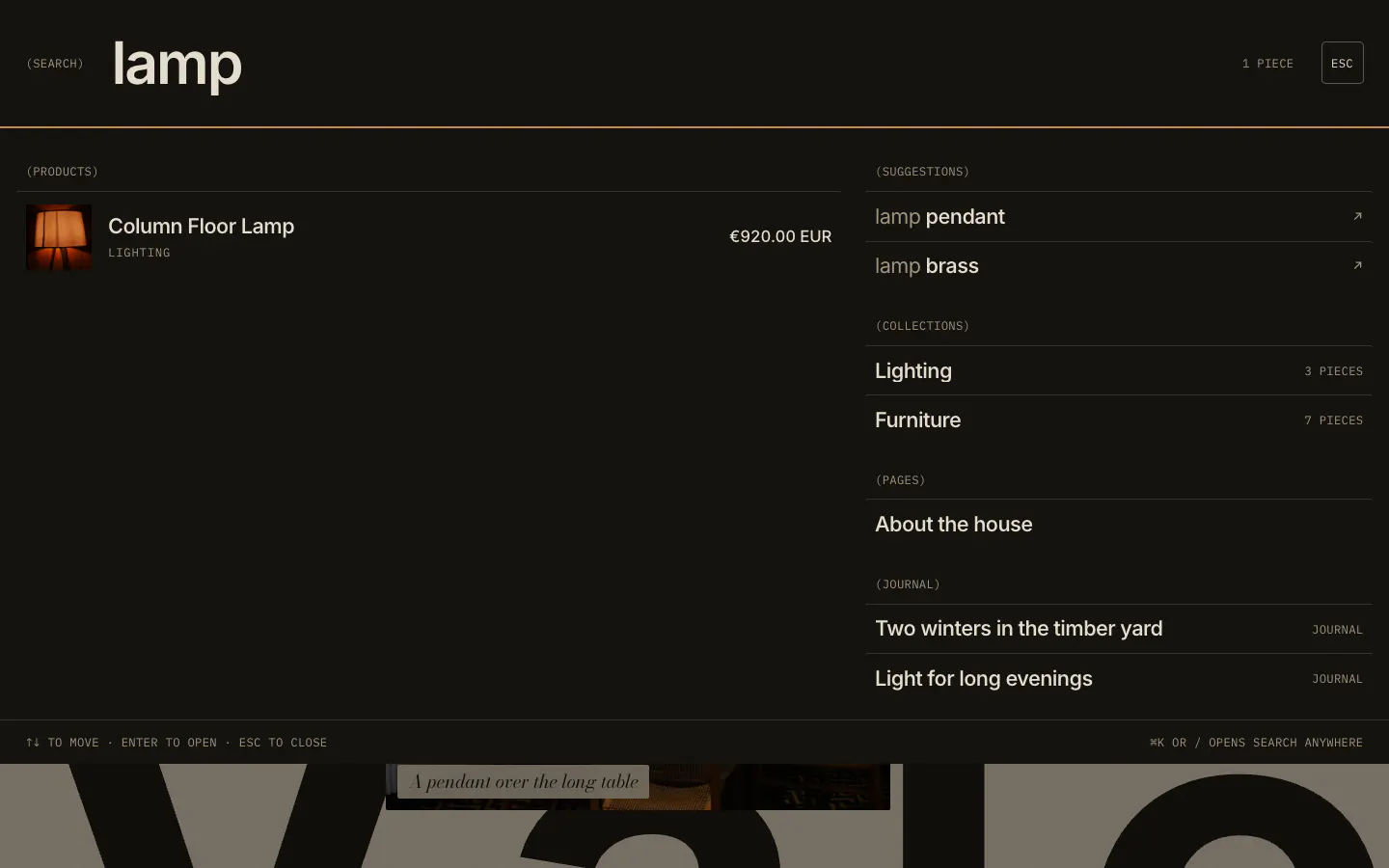
- 01Search field
- 02Suggested searches
- 03Product results
- 04Close
- Quick links
- Header setting: a menu shown under "Go to" before anything is typed
- Collections to browse
- Header setting: collections shown as small pictures under "Browse"
- Search color scheme
- Scheme 4 (Contrast) by default; Scheme 2 in Still
- Theme settings > Search
- Enable predictive search; show vendor; show price